Groobee iOS SDK 설치 가이드 (Flutter)
이 문서는 Flutter 앱(iOS 빌드)에 Groobee iOS SDK를 연동하는 설치 절차를 정리한 문서입니다. 현재 권장 버전은 iOS SDK 변경 로그에서 확인하세요.
캠페인 개요와 기능별 사용 문서는 아래 문서를 참고하세요.
- iOS SDK 개요 및 지원 범위
- iOS SDK 회원 정보 및 푸시 상태 연동
- iOS SDK 행동 이력 수집
- iOS SDK 하이브리드 앱 데이터 동기화
- iOS SDK 추천 상품 연동
- iOS SDK 주의사항 및 로그 유틸리티
- Flutter iOS SDK MethodChannel 연동
목차
- 설치 전 확인
- SDK 설치
- 4단계: AppDelegate 설정
- 5단계: LifeCycle 설정
- 6단계: Push Messaging Service 설정
- 7단계: Service 와 Content Extension 추가 (Rich Push, 선택)
- Flutter 브리지 구현 문서
- 설치 후 연동 문서
설치 전 확인
- Groobee 서비스키
- 앱 정보 등록 (앱 패키지명 / Bundle ID / 플랫폼 정보)
- 푸시 사용 시 Firebase 프로젝트 설정과 Firebase 비공개키 업로드 — 어드민 등록 방법은 어드민 푸시 설정 가이드를 참고하세요.
- APNS 인증 키(
.p8), Key ID, Team ID - Xcode에서 Push Notifications, Background Modes 활성화
- Flutter 프로젝트에서 iOS 모듈(
ios/)을 수정할 수 있는 환경 (Xcode, CocoaPods) ios/Runner/GoogleService-Info.plist파일 준비
SDK 설치
1단계: pubspec.yaml에 Firebase 패키지 추가
Flutter 프로젝트 하위의 pubspec.yaml에 Firebase 관련 패키지를 추가합니다. 이미 추가되어 있다면 이 단계는 생략합니다.
이미 Firebase 관련 패키지를 사용 중인 프로젝트라면 기존 설정을 유지해도 됩니다.
2단계: GroobeeKit Podfile 작성
Flutter iOS 앱 프로젝트 폴더(ios/)에 생성되어 있는 Podfile에 아래와 같이 GroobeeKit을 추가합니다.
Native iOS에서는
FirebaseFirestore,FirebaseMessaging을 별도로 추가하지만, Flutter iOS에서는pod 'GroobeeKit'단독으로만 추가합니다. Firebase 관련 의존성은 Flutter 측firebase_messaging,firebase_core패키지가 iOS에 플러그인 형태로 주입합니다.
3단계: GroobeeKit Pod install
터미널에서 GroobeeKit을 적용할 Flutter iOS 앱 프로젝트 경로로 이동한 뒤 flutter pub get을 실행하고, ios/ 경로로 이동해 pod install을 실행합니다.
flutter pub get이후 Flutter 플러그인이 Podfile에firebase_core,firebase_messaging관련 의존성을 주입하므로, 반드시flutter pub get→pod install순서로 실행해야 합니다.
4단계: AppDelegate 설정
import 및 상속 설정
Swift (AppDelegate.swift):
import UIKit
import Flutter
import FirebaseCore
import FirebaseMessaging
import GroobeeKit
import UserNotifications
import AppTrackingTransparency
import AdSupport

@main
@objc class AppDelegate: FlutterAppDelegate {
    ...
}
Objective-C (AppDelegate.m):
#import "AppDelegate.h"
#import "GeneratedPluginRegistrant.h"
#import <GroobeeKit/GroobeeKit-Swift.h>

@import UserNotifications;

@interface AppDelegate () <UNUserNotificationCenterDelegate>

@end

@implementation AppDelegate

...
Flutter iOS 앱은
FlutterAppDelegate를 상속받아야 하며, 기존 프로젝트에서 이미 생성된AppDelegate구조가 있다면 해당 구조를 유지한 상태로 Groobee 설정만 추가하세요.
AppDelegate에 설정할 Groobee 기능별 정리
| 클래스 | 메소드 | 설명 |
|---|---|---|
GroobeeConfig |
setServiceKey |
(필수) 그루비 어드민에서 발급받은 서비스키 등록. |
GroobeeConfig |
setInAppMsgMarginTop |
(선택) 인앱메시지 상단 노출일 경우 마진값 설정. |
GroobeeConfig |
setInAppMsgMarginBottom |
(선택) 인앱메시지 하단 노출일 경우 마진값 설정. |
GroobeeConfig |
setNotificationSettingsButton |
(선택) 푸시 알림 하단에 수신 설정 버튼 추가. 버튼 텍스트는 NSLocalizedString으로 다국어화된 텍스트를 권장하며, 앱에 알림 수신 설정 페이지 딥링크 처리가 추가로 필요합니다. |
Groobee |
configure |
(필수) 설정한 GroobeeConfig를 SDK에 적용. |
Firebase |
Firebase.initializeApp() 또는 FirebaseApp.configure() |
(푸시 사용 시 필수) FCM 토큰 발급 전에 Firebase 초기화. Flutter에서는 일반적으로 Dart 측에서 처리합니다. |
Messaging |
Messaging.messaging().delegate |
(선택) FCM 토큰을 AppDelegate에서 직접 수신할 때 설정. Dart에서 firebase_messaging으로 토큰을 받아 setPushToken으로 전달하는 구조라면 생략할 수 있습니다. |
Swift 예시
AppDelegate.swift의 application(_:didFinishLaunchingWithOptions:) 메소드에 다음 코드를 추가합니다.
아래 예시는 Groobee SDK 초기화와 iOS 푸시 권한 요청만 포함합니다. Flutter 앱에서 FCM 토큰은 보통 Dart 측 firebase_messaging에서 발급받아 MethodChannel로 Groobee.getInstance().setPushToken(pushToken:)에 전달합니다.
func application(
    _ application: UIApplication,
    didFinishLaunchingWithOptions launchOptions: [UIApplication.LaunchOptionsKey: Any]?
) -> Bool {
    GeneratedPluginRegistrant.register(with: self)

    let serviceKey = "서비스키"
    let bundleID = Bundle.main.bundleIdentifier!

    let groobeeConfig = GroobeeConfig.GroobeeConfigBuilder()
        .setServiceKey(serviceKey: serviceKey, bundleId: bundleID)
        .setInAppMsgMarginTop(50)
        .setInAppMsgMarginBottom(17)
        .setNotificationSettingsButton("알림설정", "myapp://set/noti")
        .build()
    Groobee.configure(groobeeConfig: groobeeConfig)

    pushNotiConfirmation()
    return super.application(application, didFinishLaunchingWithOptions: launchOptions)
}

func pushNotiConfirmation() {
    let center = UNUserNotificationCenter.current()
    center.requestAuthorization(options: [.badge, .alert, .sound], completionHandler: { granted, error in
        if granted {
            print("Notifications permission granted.")
            DispatchQueue.main.async {
                UIApplication.shared.registerForRemoteNotifications()
            }
        } else {
            print("Notifications permission denied.")
        }
    })
    center.delegate = self
}
FCM 토큰을 AppDelegate의
MessagingDelegate에서 직접 수신하는 구조라면 기존 Firebase 초기화 정책에 맞춰FirebaseApp.configure()와Messaging.messaging().delegate = self를 추가하세요. Firebase 초기화는 앱에서 한 번만 수행되어야 합니다.
Objective-C 예시
AppDelegate.m의 application:didFinishLaunchingWithOptions: 메소드에 다음 코드를 추가합니다.
Objective-C 예시도 Groobee SDK 초기화와 iOS 푸시 권한 요청만 포함합니다. FCM 토큰을 AppDelegate에서 직접 수신하는 구조라면 기존 Firebase 초기화 정책에 맞춰 Firebase 초기화와 FIRMessagingDelegate 설정을 추가하세요.
- (BOOL)application:(UIApplication *)application didFinishLaunchingWithOptions:(NSDictionary *)launchOptions {
    NSString *bundleId = [[NSBundle mainBundle] bundleIdentifier];
    NSString *serviceKey = @"서비스키";

    GroobeeConfig *groobeeConfig = [[[[[[GroobeeConfigBuilder alloc] init]
        setServiceKeyWithServiceKey:serviceKey bundleId:bundleId]
        setNotificationSettingsButton:@"알림설정" deeplink:@"myapp://set/noti"]
        setInAppMsgMarginTop:17]
        setInAppMsgMarginBottom:50]
        build];

    [Groobee configureWithGroobeeConfig:groobeeConfig];

    [self pushNotiConfirmation];

    return YES;
}

- (void)pushNotiConfirmation {
    if ([UNUserNotificationCenter class] != nil) {
        [UNUserNotificationCenter currentNotificationCenter].delegate = self;
        UNAuthorizationOptions authOptions = UNAuthorizationOptionAlert | UNAuthorizationOptionSound | UNAuthorizationOptionBadge;

        [[UNUserNotificationCenter currentNotificationCenter]
            requestAuthorizationWithOptions:authOptions
            completionHandler:^(BOOL granted, NSError * _Nullable error) {
                if (granted) {
                    dispatch_async(dispatch_get_main_queue(), ^{
                        [UIApplication.sharedApplication registerForRemoteNotifications];
                    });
                }
        }];
    }
}
5단계: LifeCycle 설정
그루비의 세션과 메시지 처리를 위해 App의 LifeCycle을 GroobeeKitLifeCycle에 연결합니다.
iOS 13 미만
Swift (AppDelegate.swift):
func applicationWillResignActive(_ application: UIApplication) {
    GroobeeKitLifeCycle.sceneWillResignActive()
}

func applicationDidEnterBackground(_ application: UIApplication) {
    GroobeeKitLifeCycle.sceneDidEnterBackground()
}

func applicationWillEnterForeground(_ application: UIApplication) {
    GroobeeKitLifeCycle.sceneWillEnterForeground()
}

func applicationDidBecomeActive(_ application: UIApplication) {
    GroobeeKitLifeCycle.sceneDidBecomeActive()
}

func applicationWillTerminate(_ application: UIApplication) {
    GroobeeKitLifeCycle.sceneDidDisconnect()
}
Objective-C (AppDelegate.m):
- (void)applicationWillResignActive:(UIApplication *)application {
    [GroobeeKitLifeCycle sceneWillResignActive];
}

- (void)applicationDidEnterBackground:(UIApplication *)application {
    [GroobeeKitLifeCycle sceneDidEnterBackground];
}

- (void)applicationWillEnterForeground:(UIApplication *)application {
    [GroobeeKitLifeCycle sceneWillEnterForeground];
}

- (void)applicationDidBecomeActive:(UIApplication *)application {
    [GroobeeKitLifeCycle sceneDidBecomeActive];
}

- (void)applicationWillTerminate:(UIApplication *)application {
    [GroobeeKitLifeCycle sceneDidDisconnect];
}
iOS 13 이상
Swift (SceneDelegate.swift):
func sceneDidDisconnect(_ scene: UIScene) {
    GroobeeKitLifeCycle.sceneDidDisconnect()
}

func sceneDidBecomeActive(_ scene: UIScene) {
    GroobeeKitLifeCycle.sceneDidBecomeActive()
}

func sceneWillResignActive(_ scene: UIScene) {
    GroobeeKitLifeCycle.sceneWillResignActive()
}

func sceneWillEnterForeground(_ scene: UIScene) {
    GroobeeKitLifeCycle.sceneWillEnterForeground()
}

func sceneDidEnterBackground(_ scene: UIScene) {
    GroobeeKitLifeCycle.sceneDidEnterBackground()
}
Swift (AppDelegate.swift):
func application(
    _ application: UIApplication,
    didDiscardSceneSessions sceneSessions: Set<UISceneSession>
) {
    GroobeeKitLifeCycle.sceneDidDisconnect()
}
Objective-C (SceneDelegate.m):
- (void)sceneDidDisconnect:(UIScene *)scene {
    [GroobeeKitLifeCycle sceneDidDisconnect];
}

- (void)sceneDidBecomeActive:(UIScene *)scene {
    [GroobeeKitLifeCycle sceneDidBecomeActive];
}

- (void)sceneWillResignActive:(UIScene *)scene {
    [GroobeeKitLifeCycle sceneWillResignActive];
}

- (void)sceneWillEnterForeground:(UIScene *)scene {
    [GroobeeKitLifeCycle sceneWillEnterForeground];
}

- (void)sceneDidEnterBackground:(UIScene *)scene {
    [GroobeeKitLifeCycle sceneDidEnterBackground];
}
Objective-C (AppDelegate.m):
- (void)application:(UIApplication *)application
didDiscardSceneSessions:(NSSet<UISceneSession *> *)sceneSessions {
    [GroobeeKitLifeCycle sceneDidDisconnect];
}
6단계: Push Messaging Service 설정
FCM과 APNS 연동 방법
iOS의 경우 APNs 인증키를 FCM에 등록해야 FCM을 통한 푸시 발송이 가능합니다. \ 다음은 APNs 인증키를 FCM에 등록하는 방법예시입니다.
- Firebase 콘솔에서
설정>일반>클라우드 메시징메뉴로 진입한 후, 등록해둔 앱의 APN 인증키를 업로드 버튼을 누릅니다.
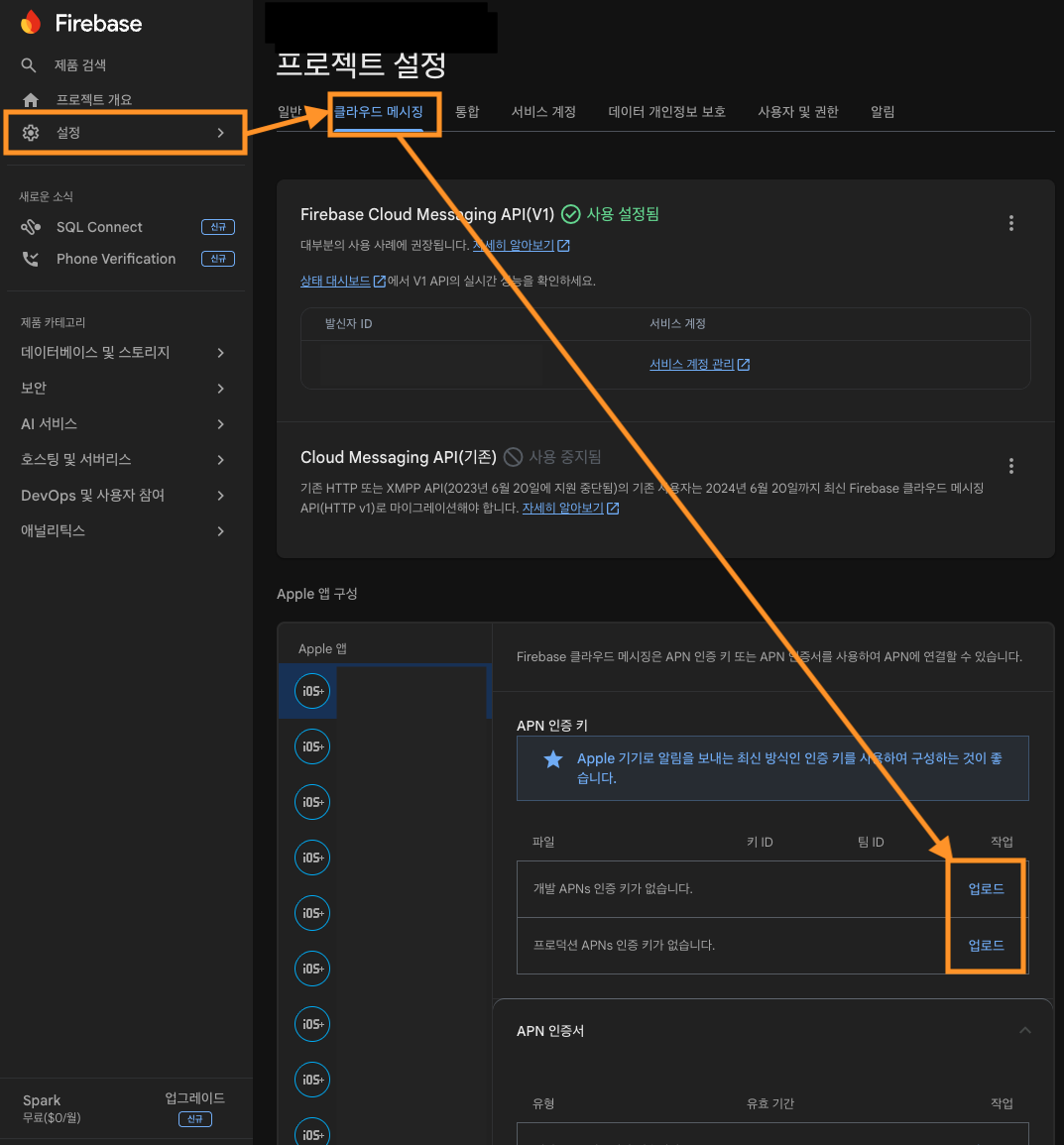
- 내려받은
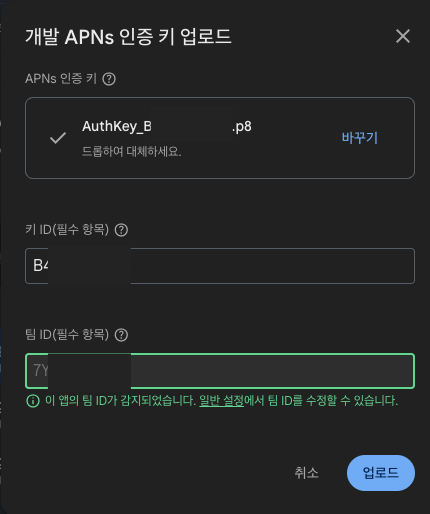
.p8파일을 업로드하고 Key ID, Team ID를 입력해 업로드를 완료합니다.
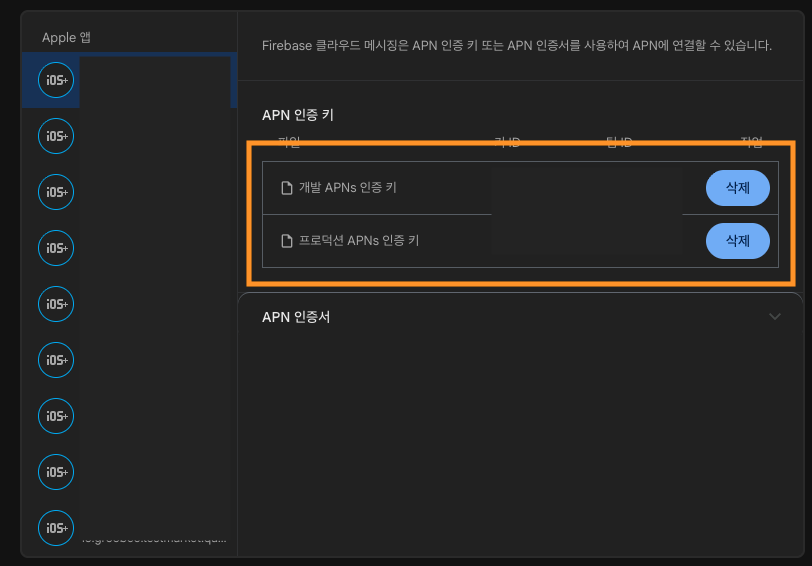
- 업로드가 완료되면 APNs 인증키가 등록된 것을 확인할 수 있습니다.
참고 링크:
- APNS 연동 공식 문서: Firebase Cloud Messaging for iOS
- Apple Auth Key 관리: Apple Developer Auth Keys
- Apple Team 정보: Apple Developer Account
Runner 타겟 Push Capability 확인
Flutter iOS 프로젝트에서 실제 APNs/FCM 푸시를 사용하려면 Runner 타겟에 푸시 권한과 백그라운드 수신 설정이 포함되어 있어야 합니다.
ios/Runner.xcworkspace를 Xcode로 엽니다.Runner타겟의 Signing & Capabilities 탭으로 이동합니다.+ Capability를 눌러 Push Notifications를 추가합니다.- Background Modes를 추가하고 Remote notifications를 체크합니다.
Xcode에서 Push Notifications를 추가하면 Runner.entitlements에 aps-environment 항목이 포함됩니다. 이 설정이 없으면 APNs 토큰이 발급되지 않고, 결과적으로 FCM 토큰 및 Groobee 푸시 발송 대상 등록도 정상 처리되지 않습니다.
Flutter AppDelegate 푸시 수신 및 응답 처리
Flutter 앱에서 firebase_messaging 등 다른 Flutter 플러그인과 Groobee SDK를 함께 사용하는 경우, iOS 푸시 수신/응답 콜백을 Groobee SDK와 Flutter 플러그인 양쪽에 전달해야 합니다.
알림 응답 처리는 Groobee.getInstance().userNotificationCenter(response:)에서 처리합니다. 이 메소드는 Groobee 푸시의 알림 본문 탭과 알림 설정 버튼 액션을 처리합니다. GroobeeNotification.getInstance().receiveService()는 아래 Rich Push 섹션의 Notification Service Extension에서 알림 표시 전 내용을 가공할 때 사용하는 메소드이며, 알림 응답 처리용이 아닙니다.
Swift:
override func application(
    _ application: UIApplication,
    didRegisterForRemoteNotificationsWithDeviceToken deviceToken: Data
) {
    let isFirebaseProxyDisabled =
        (Bundle.main.object(forInfoDictionaryKey: "FirebaseAppDelegateProxyEnabled") as? Bool) == false

    if isFirebaseProxyDisabled, FirebaseApp.app() != nil {
        Messaging.messaging().apnsToken = deviceToken
    }

    super.application(
        application,
        didRegisterForRemoteNotificationsWithDeviceToken: deviceToken
    )
}

override func application(
    _ application: UIApplication,
    didReceiveRemoteNotification userInfo: [AnyHashable: Any],
    fetchCompletionHandler completionHandler: @escaping (UIBackgroundFetchResult) -> Void
) {
    Groobee.getInstance().didReceiveRemoteNotification(userInfo: userInfo)

    let isFirebaseProxyDisabled =
        (Bundle.main.object(forInfoDictionaryKey: "FirebaseAppDelegateProxyEnabled") as? Bool) == false

    if isFirebaseProxyDisabled, FirebaseApp.app() != nil {
        Messaging.messaging().appDidReceiveMessage(userInfo)
    }

    super.application(
        application,
        didReceiveRemoteNotification: userInfo,
        fetchCompletionHandler: completionHandler
    )
}

override func userNotificationCenter(
    _ center: UNUserNotificationCenter,
    willPresent notification: UNNotification,
    withCompletionHandler completionHandler: @escaping (UNNotificationPresentationOptions) -> Void
) {
    if #available(iOS 14.0, *) {
        completionHandler([.banner, .list, .badge, .sound])
    } else {
        completionHandler([.alert, .badge, .sound])
    }
}

override func userNotificationCenter(
    _ center: UNUserNotificationCenter,
    didReceive response: UNNotificationResponse,
    withCompletionHandler completionHandler: @escaping () -> Void
) {
    if Groobee.getInstance().userNotificationCenter(response: response) {
        completionHandler()
        return
    }

    super.userNotificationCenter(
        center,
        didReceive: response,
        withCompletionHandler: completionHandler
    )
}
FirebaseAppDelegateProxyEnabled를 false로 둔 프로젝트는 APNs 토큰과 메시지 수신 이벤트를 Firebase Messaging에 수동 전달해야 합니다. 기본값(true 또는 키 없음)에서는 Firebase swizzling이 처리하므로 위 조건처럼 중복 호출을 피하세요.
didReceiveRemoteNotification에서 super.application(...)을 호출하면 Flutter 플러그인 쪽으로도 푸시 이벤트가 전달됩니다. 이 경우 completionHandler는 중복 호출하지 않도록 주의하세요.
메소드별 역할은 다음과 같습니다.
| 위치 | 메소드 | 역할 |
|---|---|---|
AppDelegate |
Groobee.getInstance().didReceiveRemoteNotification(userInfo:) |
푸시 수신 이벤트를 Groobee에 전달합니다. |
AppDelegate |
Groobee.getInstance().userNotificationCenter(response:) |
알림 본문 탭과 알림 설정 버튼 액션 등 Groobee 푸시 응답을 처리합니다. |
Notification Service Extension |
GroobeeNotification.getInstance().receiveService(...) |
Rich Push 이미지 첨부, 알림 카테고리 설정 등 표시 전 가공을 처리합니다. |
Notification Content Extension |
GroobeeNotification.getInstance().receiveContent(...) |
커스텀 알림 UI 표시를 처리합니다. |
7단계: Service 와 Content Extension 추가 (Rich Push, 선택)
Service와 Content Extension은 기본 푸시 수신, 푸시 오픈/응답 처리, 푸시 토큰 등록에는 필수가 아닙니다.
일반 텍스트 푸시 수신과 푸시 본문 탭 응답 처리는 위 AppDelegate 연동만으로 처리할 수 있습니다. 알림 설정 버튼 액션 응답도 userNotificationCenter(response:)에서 처리하지만, 버튼을 실제 알림에 표시하려면 알림 카테고리가 적용되어야 합니다. Notification Service Extension을 추가하면 receiveService()가 알림 표시 전에 카테고리와 첨부 파일을 가공합니다.
Service와 Content를 추가한 Rich Push 방식을 사용하면 푸시 메시지 전환 상태 측정과 커스텀 푸시 메시지 확장이 가능합니다.
Notification Service Extension
사용자에게 전달되기 전 Remote Notification의 내용을 수정하는 확장입니다. 이미지, 비디오, 오디오, 특수 형식 콘텐츠를 알림에 추가할 수 있습니다.
Notification Service Extension은 이미지 첨부나 알림 표시 전 가공이 필요한 경우에만 추가합니다. 사용하지 않으면 일반 텍스트 푸시 수신/응답 처리는 가능하지만, 이미지가 포함된 Rich Push나 알림 표시 전 카테고리 설정은 처리되지 않습니다.
Apple 공식 문서: https://developer.apple.com/documentation/usernotifications/unnotificationserviceextension
Notification Content Extension
앱의 알림에 대한 사용자 지정 인터페이스를 표시하는 확장입니다. 사용자 지정 색상, 브랜딩, 미디어, 동적 콘텐츠를 알림 인터페이스에 통합할 수 있습니다.
Notification Content Extension은 커스텀 알림 UI가 필요한 경우에만 추가합니다.
Apple 공식 문서: https://developer.apple.com/documentation/usernotificationsui/unnotificationcontentextension
Flutter 프로젝트 Podfile 설정
Flutter iOS 프로젝트에서 Notification Service Extension 또는 Notification Content Extension을 추가한 경우, Extension 타겟에서도 GroobeeKit을 참조할 수 있어야 합니다. ios/Podfile에 Extension 타겟 이름에 맞춰 아래와 같이 추가한 뒤 pod install을 다시 실행하세요.
target 'Service' do
  use_frameworks!
  pod 'GroobeeKit'
end

target 'Content' do
  use_frameworks!
  pod 'GroobeeKit'
end
Service, Content는 아래 단계에서 생성하는 Extension의 Product Name 예시입니다. 실제 프로젝트에서 다른 이름으로 생성했다면 Podfile의 target 이름도 동일하게 맞춰야 합니다.
Xcode가 Extension 타겟을 생성할 때 메인 앱 타겟의 Build Phases > Embed App Extensions에 Extension을 자동으로 추가합니다. 빌드 또는 실행 시 Rich Push Extension이 동작하지 않으면 이 항목이 누락되지 않았는지 함께 확인하세요.
Service 설정
+ Capabilities버튼을 눌러Push Notifications와Background Modes를 추가하고Background fetch,Remote notifications를 체크하여 활성화합니다.
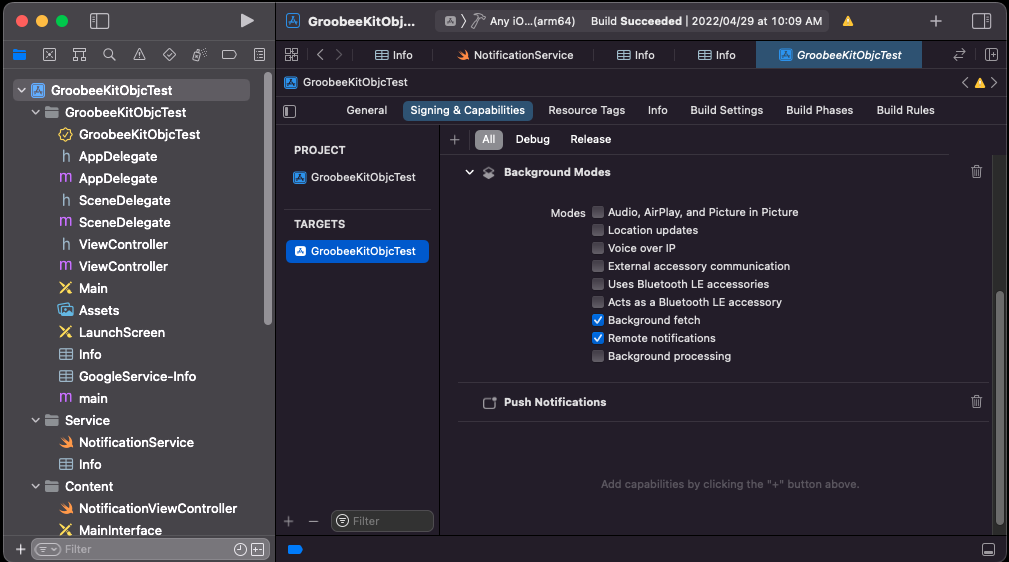
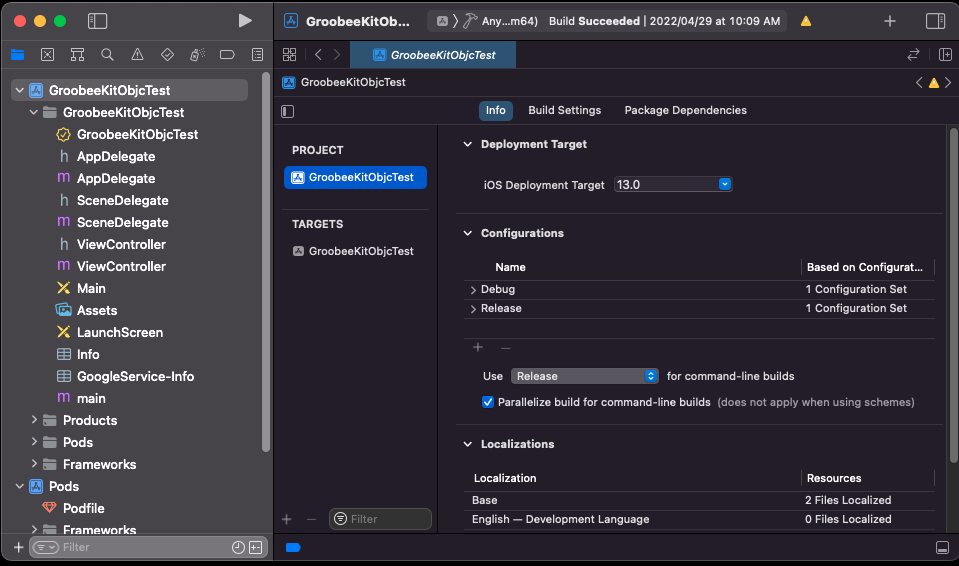
TARGETS하단의+버튼을 클릭합니다.
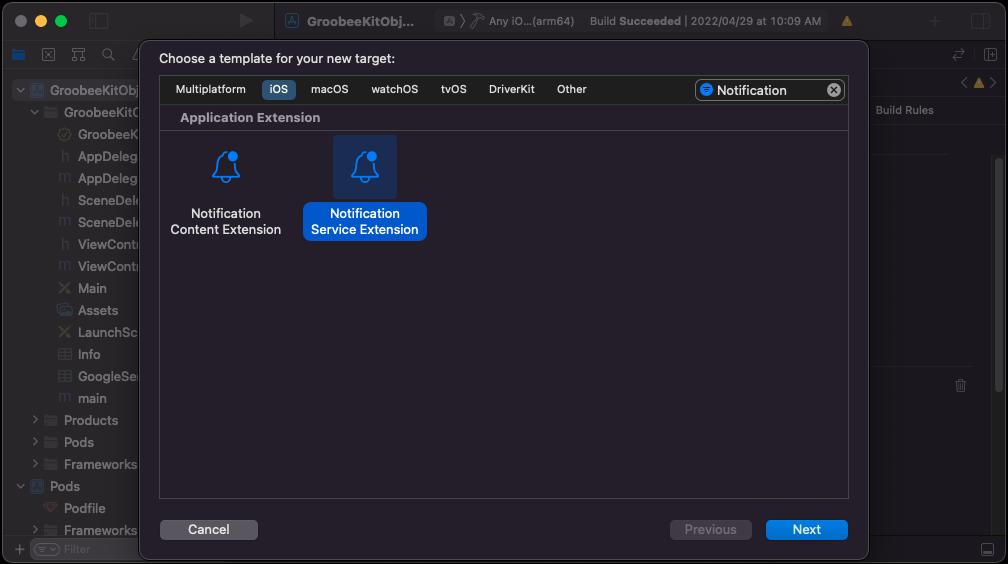
Notification검색 후Notification Service Extension을 선택하여Next로 진행합니다.
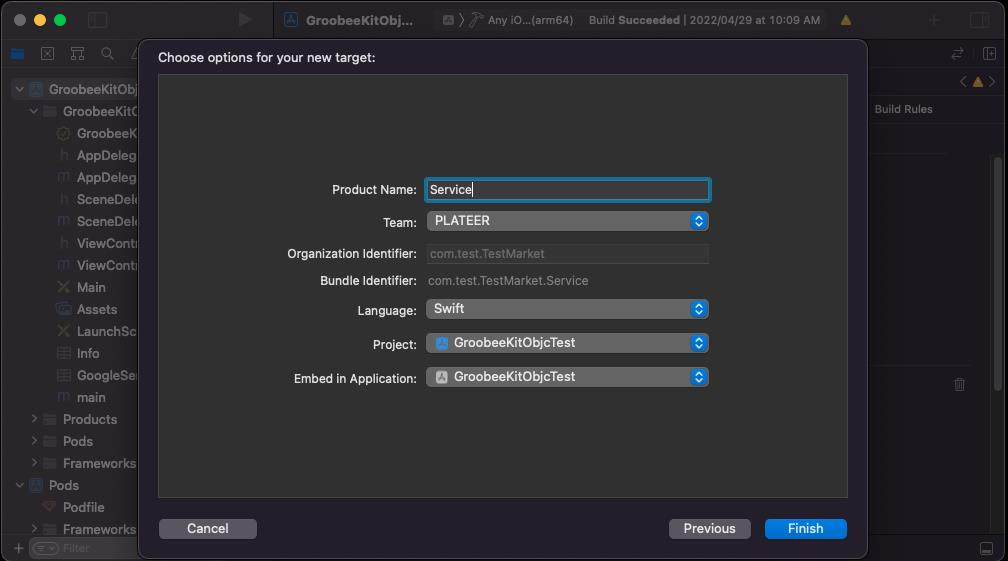
Product Name을Service로 입력하고Language를Swift로 설정한 뒤Finish를 클릭하고, 다이얼로그에서Activate를 눌러 Service 스키마를 활성화합니다.
- Service의
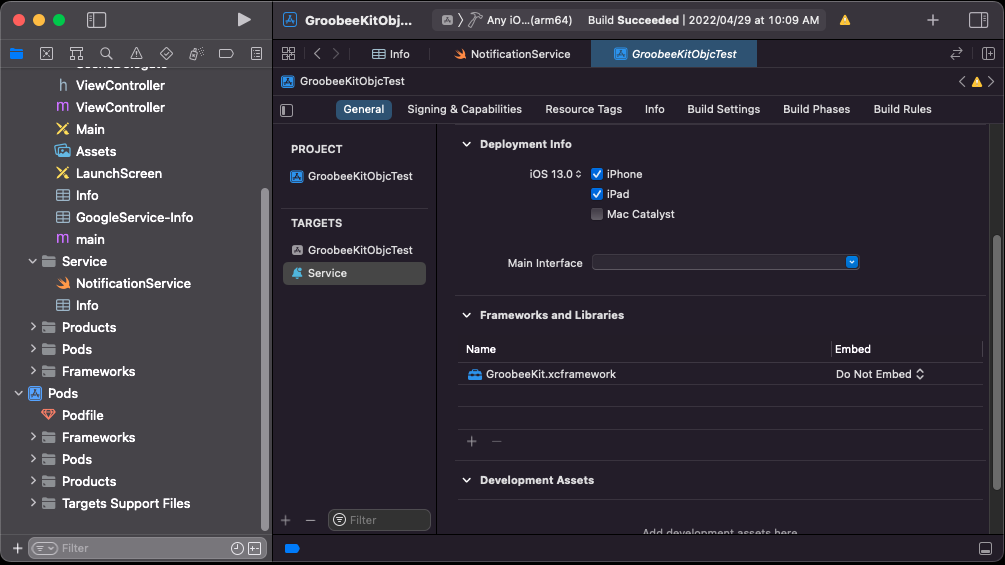
Deployment Info에서 iOS 버전을 현재 앱 프로젝트의 Deployment Target과 동일하게 설정합니다. 그리고Frameworks and Libraries에GroobeeKit.xcframework를 추가하고Embed를Do Not Embed로 설정합니다.
Service -> Info.plist에 아래 항목을 추가합니다.
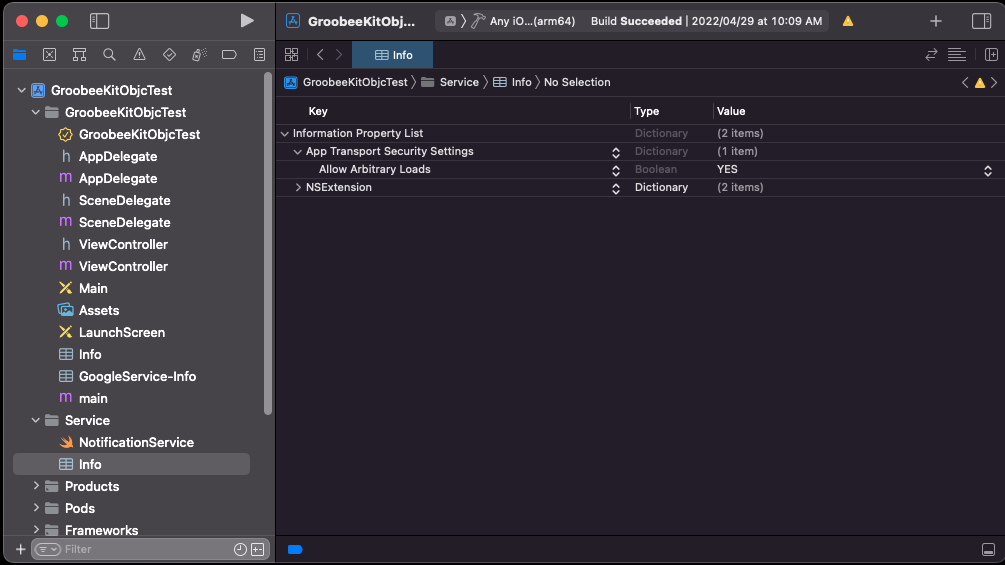
| Key | Type | Value |
|---|---|---|
App Transport Security Settings |
Dictionary | (1 item) |
Allow Arbitrary Loads |
Boolean | YES |
NotificationService.swift에 아래 코드를 작성합니다.
Firebase 메시징 서비스가 이미 등록되어 있는 경우 GroobeeNotification.getInstance().receiveService()를 통해 request, bestAttemptContent, contentHandler 객체를 그루비에 전달할 수 있습니다.
또한, 그루비는 Admin에서 발송한 메시지만 렌더링할 수 있도록 분기 처리 로직이 포함되어 있습니다. 다른 FCM 서비스를 이용 중인 경우에는 else 구간에 코드를 삽입해 메시징 핸들링을 제어할 수 있습니다.
import UserNotifications
import Foundation
import GroobeeKit

class NotificationService: UNNotificationServiceExtension {
    var contentHandler: ((UNNotificationContent) -> Void)?
    var bestAttemptContent: UNMutableNotificationContent?

    override func didReceive(
        _ request: UNNotificationRequest,
        withContentHandler contentHandler: @escaping (UNNotificationContent) -> Void
    ) {
        self.contentHandler = contentHandler
        bestAttemptContent = (request.content.mutableCopy() as? UNMutableNotificationContent)

        if let bestAttemptContent = bestAttemptContent {
            if GroobeeNotification.getInstance().receiveService(
                request,
                bestAttemptContent,
                withContentHandler: contentHandler
            ) {
                // Groobee Push Message
            } else {
                // Check if message contains a notification payload.
            }
        }
    }

    override func serviceExtensionTimeWillExpire() {
        if let contentHandler = contentHandler, let bestAttemptContent = bestAttemptContent {
            contentHandler(bestAttemptContent)
        }
    }
}
Content 설정
TARGETS하단의+버튼을 클릭합니다.
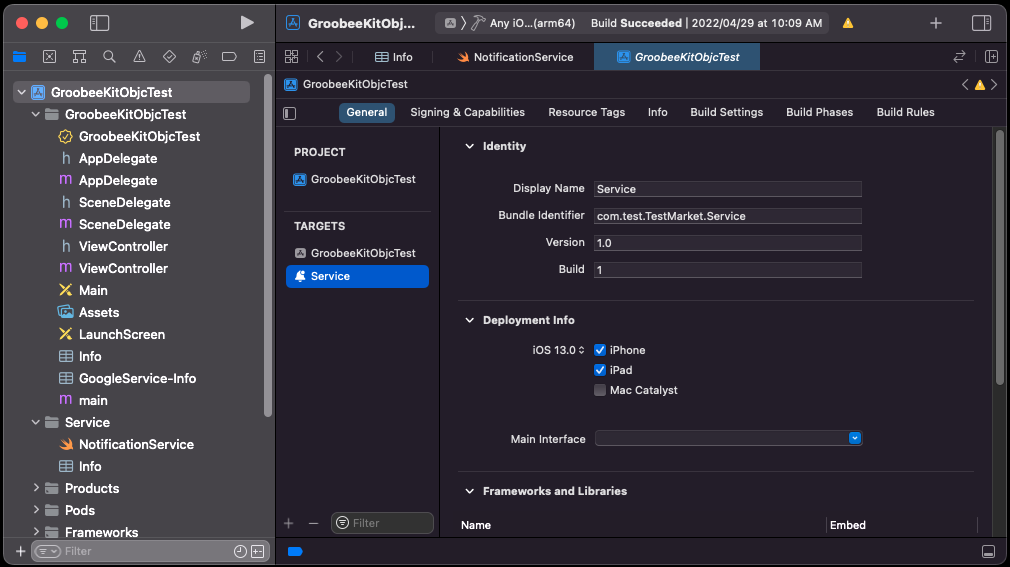
Notification검색 후Notification Content Extension을 선택하여Next로 진행합니다.
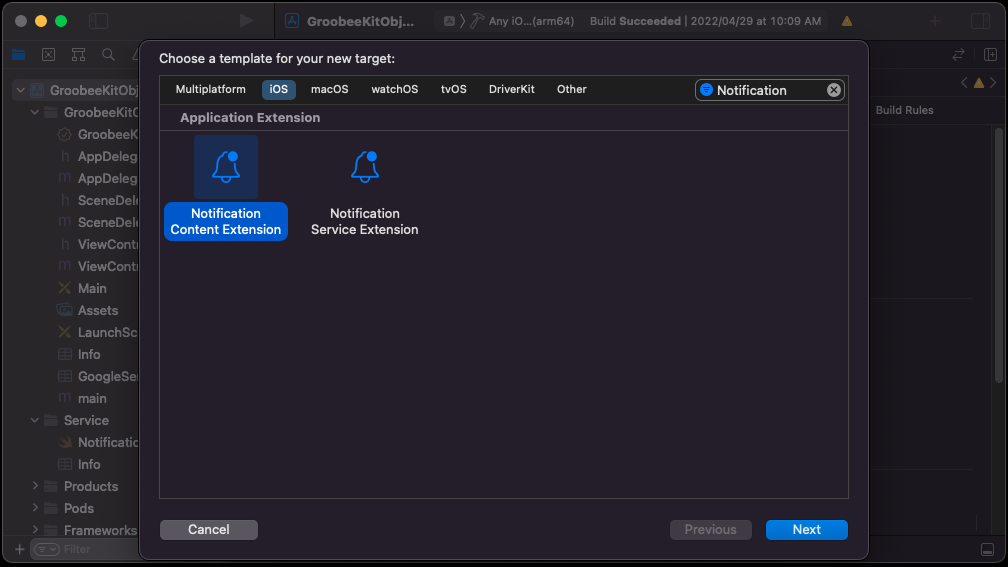
Product Name을Content로 입력하고Language를Swift로 설정한 뒤Finish를 클릭하고, 다이얼로그에서Activate를 눌러 Content 스키마를 활성화합니다.
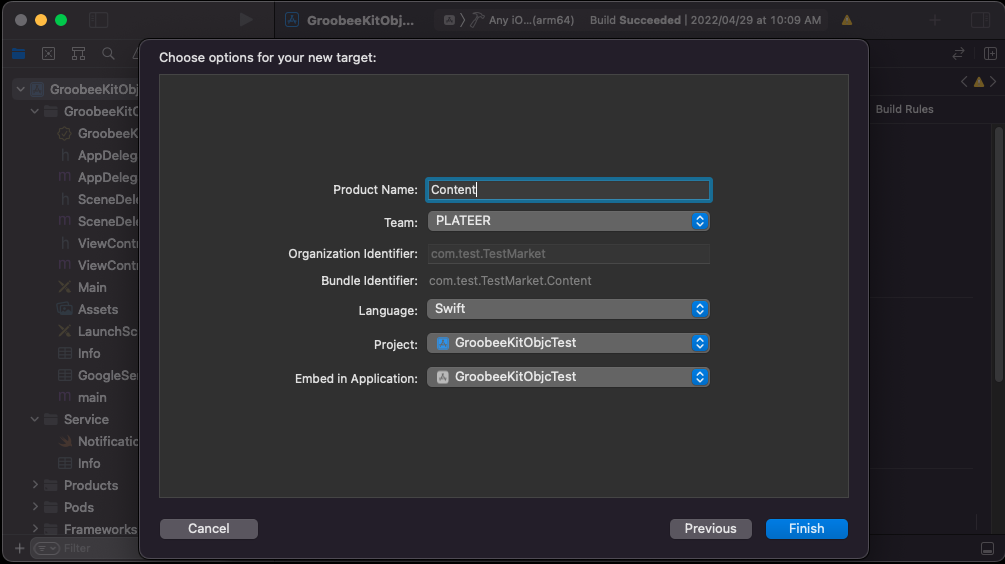
- Content의
Deployment Info에서 iOS 버전을 현재 앱 프로젝트의 Deployment Target과 동일하게 설정합니다. 그리고Frameworks and Libraries에GroobeeKit.xcframework를 추가하고Embed를Do Not Embed로 설정합니다.
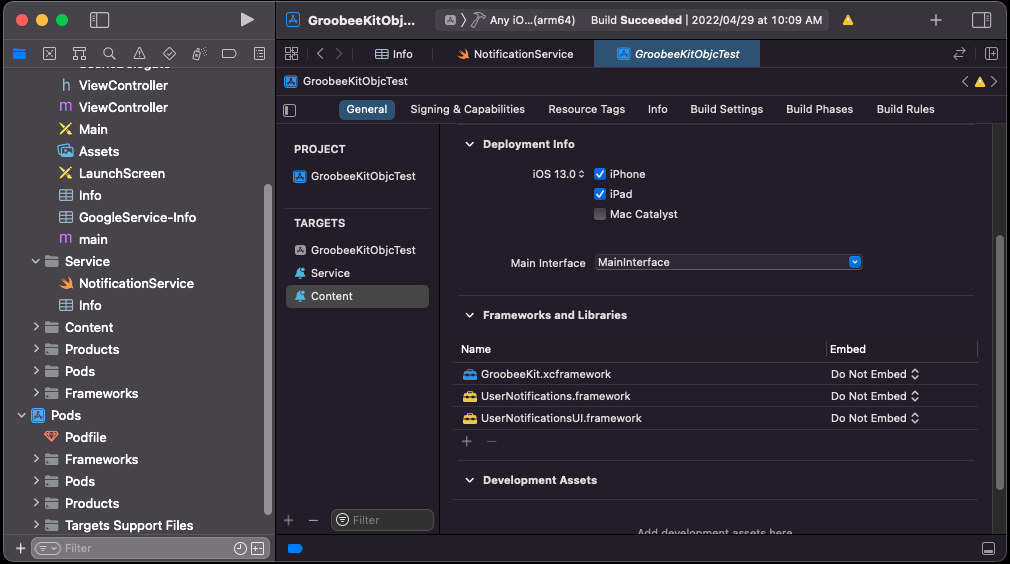
Content -> Info.plist에 아래 항목을 추가합니다.
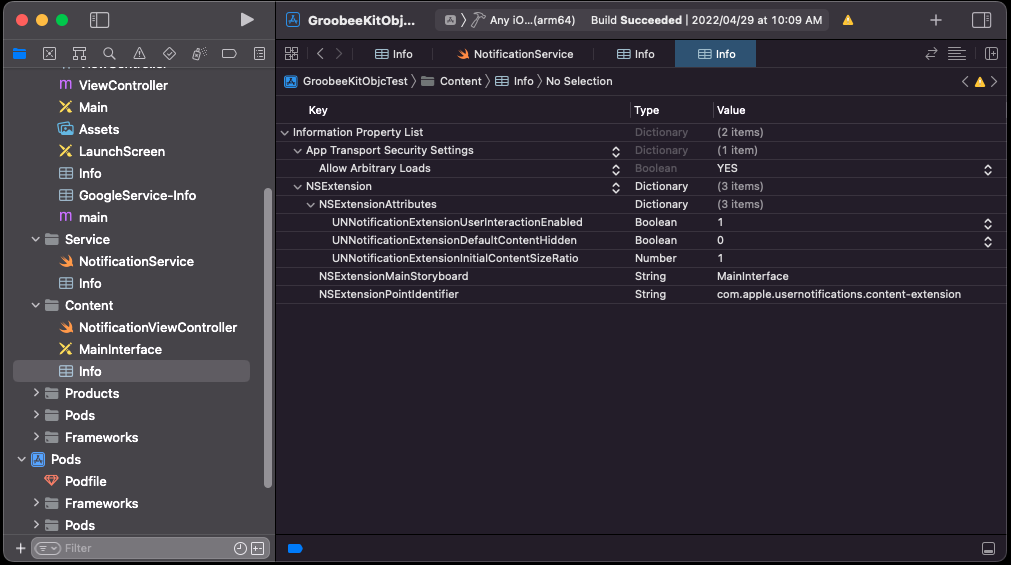
| Key | Type | Value |
|---|---|---|
App Transport Security Settings |
Dictionary | (1 item) |
Allow Arbitrary Loads |
Boolean | YES |
| Key | Type | Value |
|---|---|---|
NSExtensionAttributes |
Dictionary | (3 items) |
UNNotificationExtensionUserInteractionEnabled |
Boolean | 1 |
UNNotificationExtensionDefaultContentHidden |
Boolean | 0 |
UNNotificationExtensionInitialContentSizeRatio |
Number | 1 |
NotificationViewController.swift에 아래 코드를 작성합니다.
Firebase 메시징 서비스가 이미 등록되어 있는 경우 GroobeeNotification.getInstance().receiveContent()를 통해 notification 객체를 그루비에 전달할 수 있습니다.
NotificationService.swift에 추가한 분기 로직과 동일하게 Content에도 분기 코드를 작성합니다.
import UIKit
import UserNotifications
import UserNotificationsUI
import Foundation
import GroobeeKit

class NotificationViewController: UIViewController, UNNotificationContentExtension {
    @IBOutlet var label: UILabel?

    func didReceive(_ notification: UNNotification) {
        if GroobeeNotification.getInstance().receiveContent(notification) {
            // Groobee Push Message
        } else {
            // Check if message contains a notification payload.
        }
    }

    func didReceive(
        _ response: UNNotificationResponse,
        completionHandler completion: @escaping (UNNotificationContentExtensionResponseOption) -> Void
    ) {
        completion(.doNotDismiss)
    }
}
Rich Push의 상세 Xcode 설정 화면과 스크린샷은 iOS Native SDK 설치 가이드의 Rich Push 설정 섹션과 동일합니다. Flutter 프로젝트에서도
Runner프로젝트에 Extension을 추가하는 절차 자체는 Native iOS와 동일하게 적용됩니다.
Flutter 브리지 구현 문서
Flutter 앱에서는 Dart 측 코드에서 Groobee SDK 메소드를 직접 호출할 수 없기 때문에, MethodChannel을 이용해 Dart ↔ iOS 사이를 연결해야 합니다.
Dart 측에서는 FCM 토큰 생성 전에 Firebase.initializeApp()을 먼저 호출해야 합니다. (주의: 프로젝트 하위에 GoogleService-Info.plist가 포함되어 있어야 합니다.)